Link Your SEU Email
Account to MyFIRE
It
is important for students to check their SEU email daily as instructors and SEU
departments will communicate with you through your SEU email account. SEU’s
email is through Gmail; therefore, users are able to connect their SEU email
account within MyFIRE to have quicker email access while navigating courses.
This tutorial demonstrates how to link your SEU email account to MyFIRE.
1. Access
your MyFIRE account.
2. Once
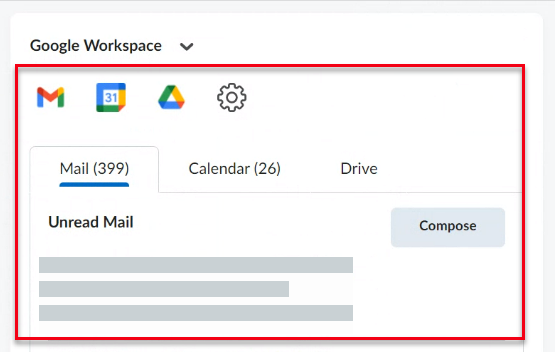
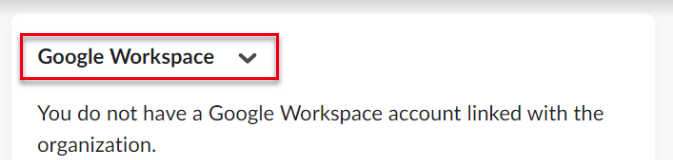
signed into MyFIRE, on your user homepage, scroll down the page and locate the Google
Workplace area. It will be listed to the right of the MyCourses area.
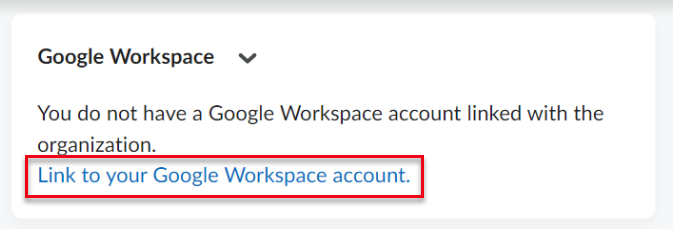
3. Select link to your Google Workspace account.
4. The
page will refresh. Enter your SEU email address in the email address field.
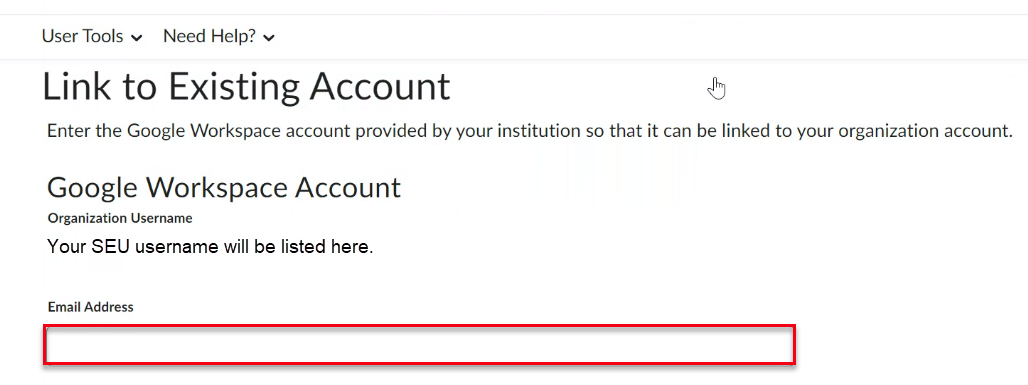
5. Then
select link account at the bottom of the page.

6. The
MyFIRE page will refresh and you will be redirected back to the user homepage.
Scroll down and locate the Google Workplace area once again.
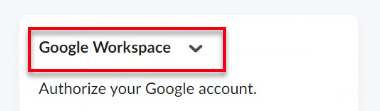
7. Select authorize.

8. If
you are not already signed into your SEU Gmail account, you will be prompted to login.
9. A
pop-up window from Google will appear. Select your SEU email account from the available options.
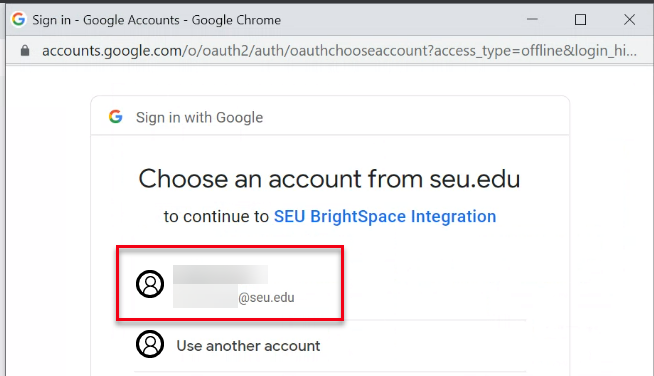
10. When
the pop-up window refreshes, scroll to the bottom of the window using
the sidebar.
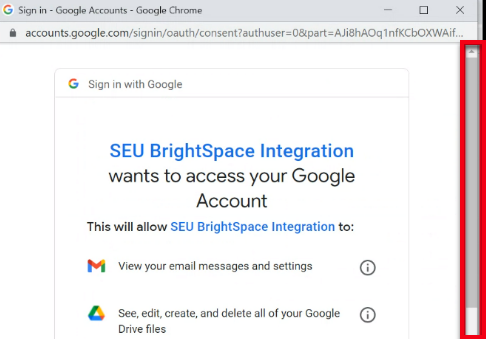
11. Select allow to approve the SEU BrightSpace integration.

12. Once
the connection has been allowed, your MyFIRE user homepage will refresh to
display your SEU Google account connected to MyFIRE. Note: This make take a
few moments depending on your internet speed. If needed, refresh or reload the
page manually. Refer to the utilize Google Workspace tutorial on
how to navigate your Google workspace account.